

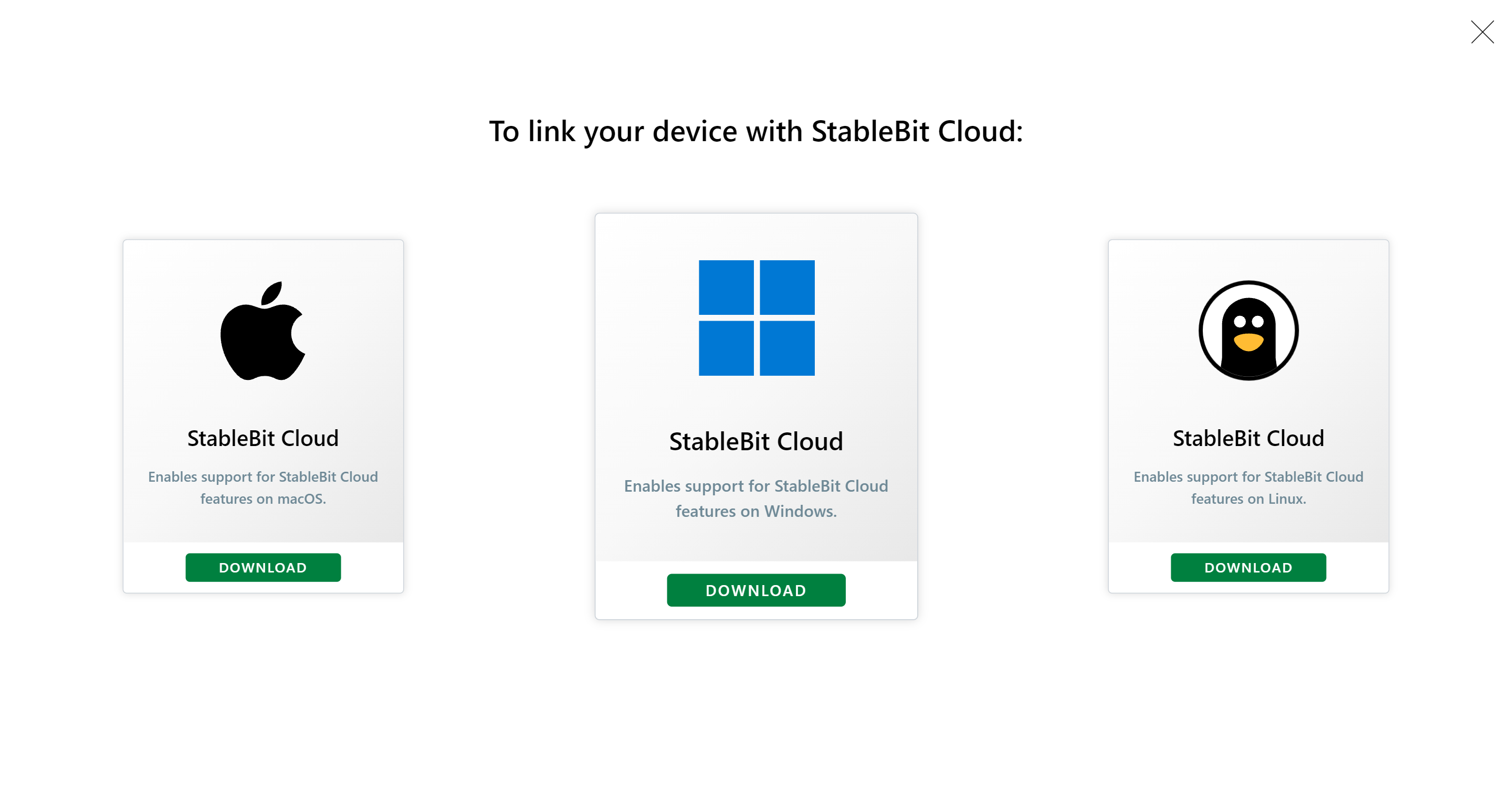
With the latest update of StableBit Cloud, you can now link your Linux, macOS, and Windows devices to the cloud in order to enable cloud-powered features on those devices.
To get started: https://stablebit.cloud/Download
The first new feature that we’re introducing is Disk Scanner (now in BETA). Disk Scanner is a modernized, multiplatform version of our original StableBit Scanner with a cloud-based user interface.
More on Disk Scanner later in this post.
StableBit Cloud+
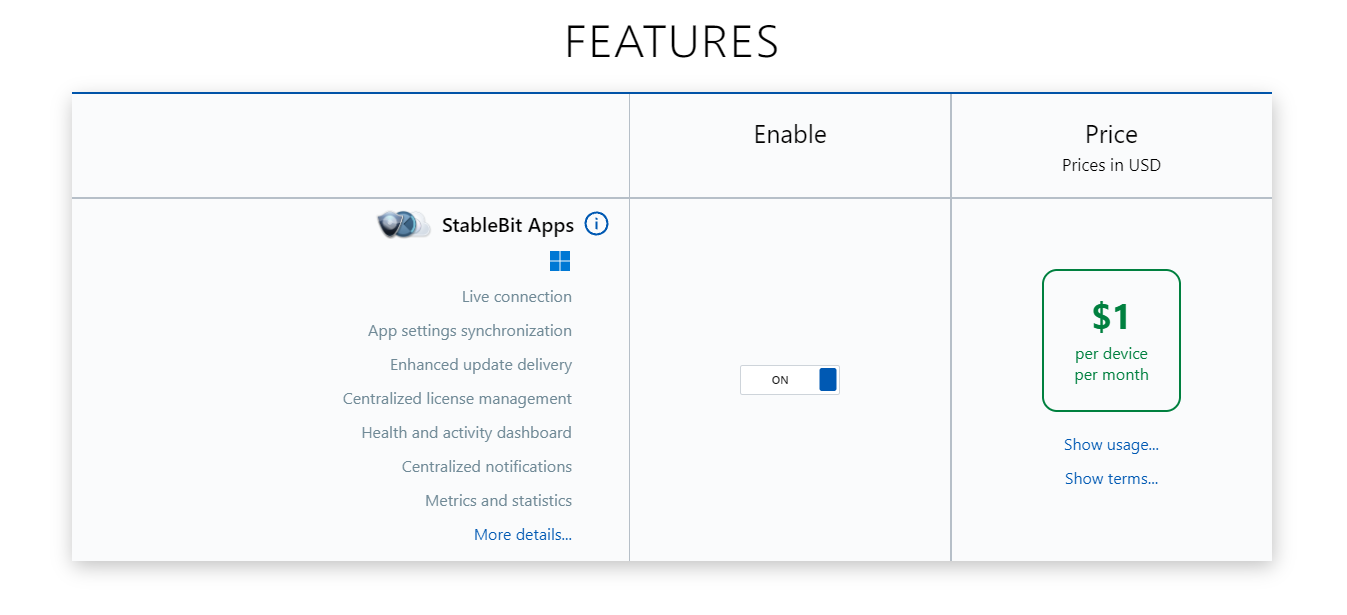
For our existing subscribers, the StableBit Cloud+ subscription will now be known as the StableBit Apps feature, which is now part of the overall StableBit Cloud subscription. The price of the StableBit Apps feature remains the same as the old StableBit Cloud+ subscription. No pre-existing StableBit Cloud+ functionality is taken away with this update. Overall, this update aims to be seamless and additive for our existing subscribers.
To coincide with this update, new releases of our StableBit Apps are now available that incorporate this naming change.
Download the latest StableBit Apps at: https://stablebit.cloud/Download/Apps
Linking a Device
In order to enable StableBit Cloud-powered features on your devices, those devices must first be linked to the cloud.
To link a device to StableBit Cloud, you can open the Devices area and choose ADD MY DEVICE at the bottom (or visit https://stablebit.cloud/Download). Then, select your operating system and choose DOWNLOAD.
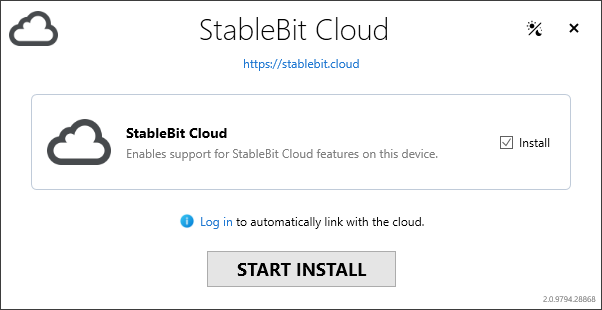
Graphical installers are available for macOS and Windows.
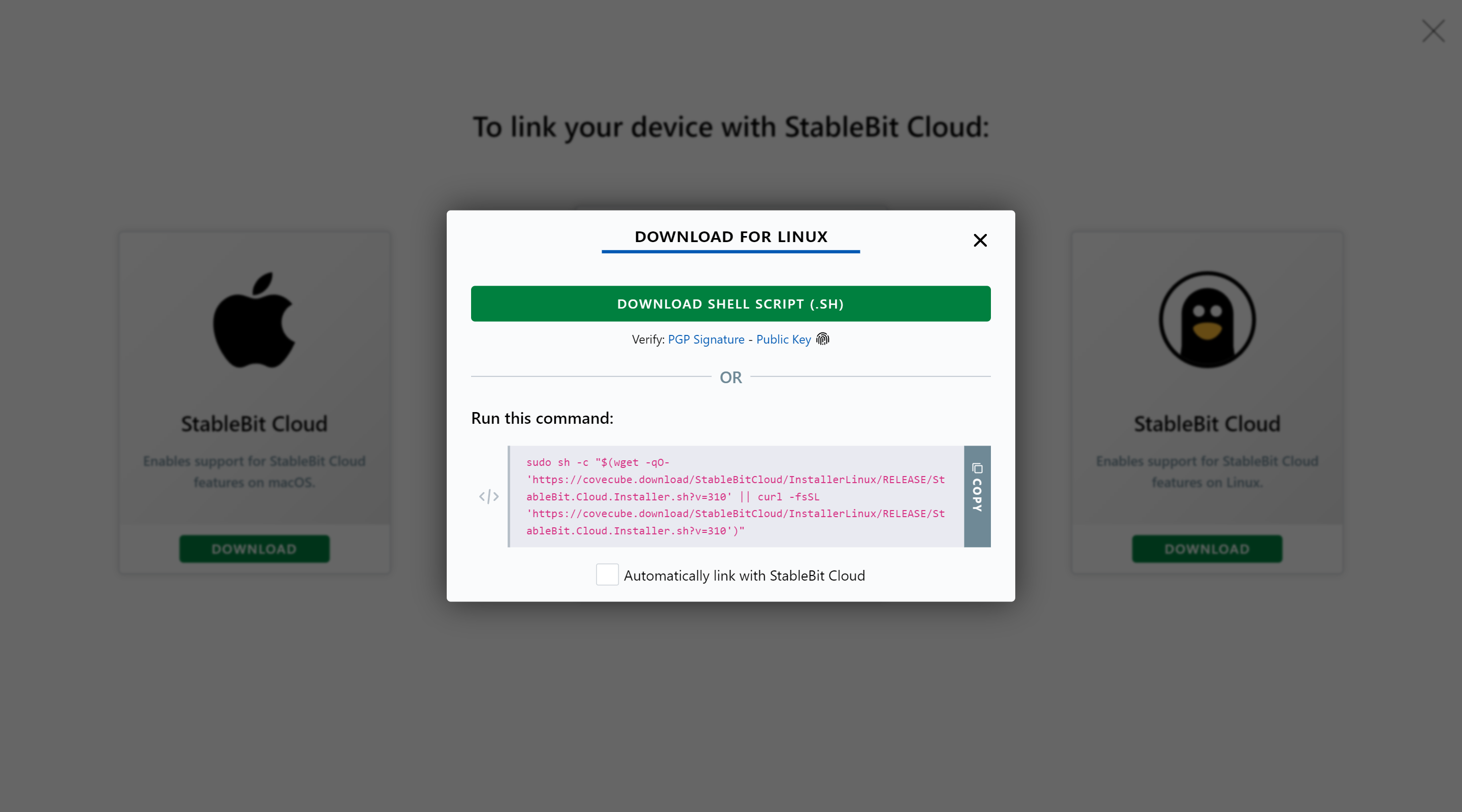
You can also use our script-based installers on Linux and Windows, and you can optionally choose to have the device automatically link to StableBit Cloud at the end of installation.
Automatic Linking
Normally, your device will be automatically linked to the cloud after installation completes, and no further action is necessary. But automatic linking does have some built-in security restrictions, and may not be possible in every case.
In particular:
- The Windows graphical installer requires an additional website login and approval step in order to automatically link your device.
- The macOS installer must be downloaded and run on the same device.
- Automatic linking is not available on Linux when downloading the shell script installer for later use.
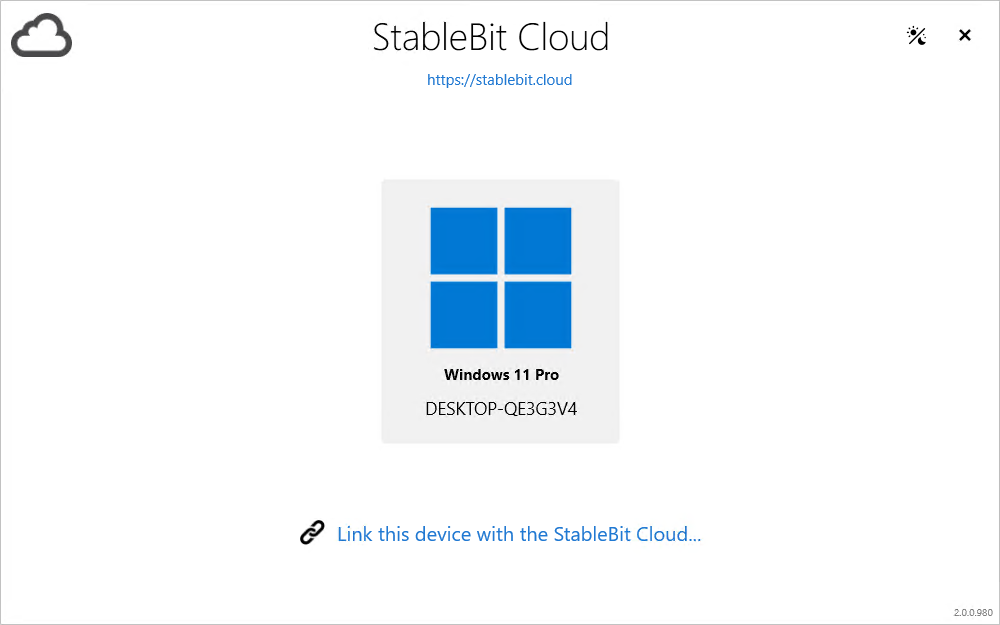
You can complete linking manually at any time using our StableBit Cloud app, available on both macOS and Windows. This app is automatically installed on your device.
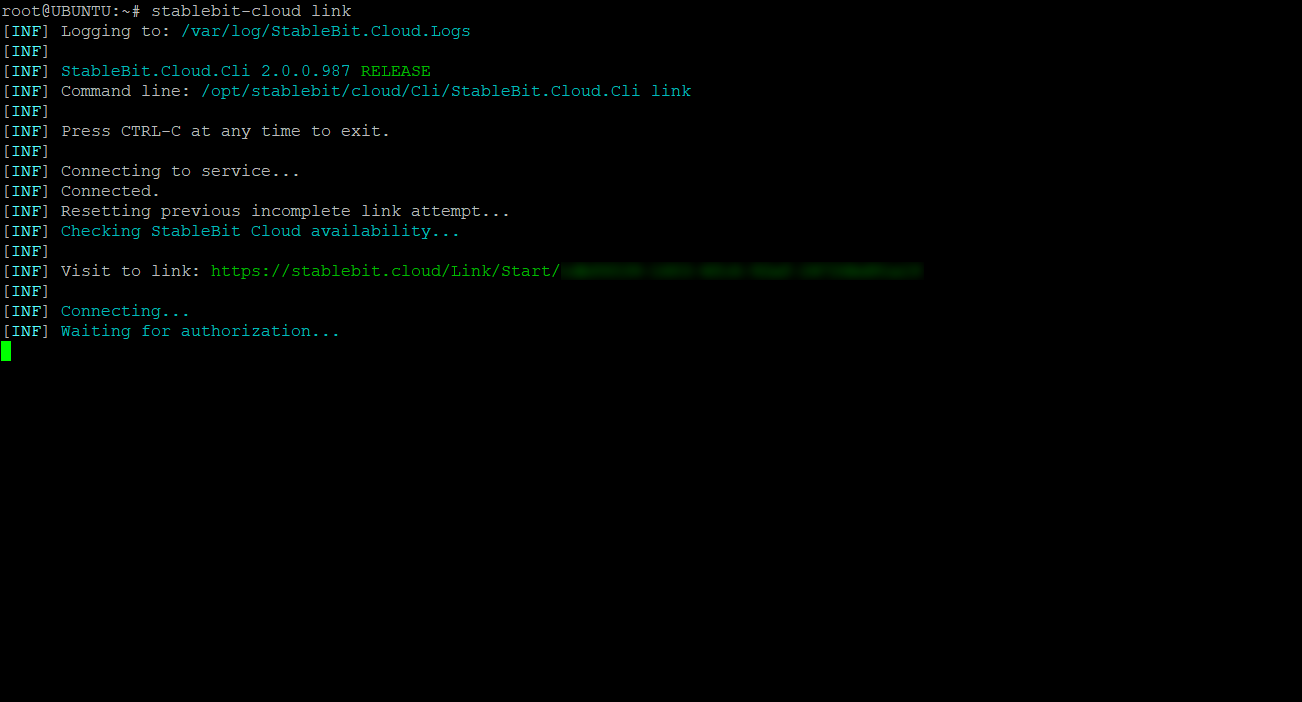
On Linux, to manually link your device at any time, you can simply run stablebit-cloud link after installation completes. This is also supported on macOS and Windows.
Minimum Requirements
To install StableBit Cloud on your device, the minimum system requirements are as follows:
- Linux
- A 64-bit, glibc-based distribution using systemd.
- Processor: x64 or ARM64
- macOS
- macOS 14.8 Sonoma or later.
- Processor: Intel or Apple silicon
- Windows
- Windows 10 version 1607 or later, Windows 11 or later.
- Processor: x86, x64, or ARM64
- Windows Server
- Windows Server 2016 or later.
- Processor: x64
No reboots are necessary to install, update, or uninstall StableBit Cloud.
Command Line Interface
Along with our graphical apps for Windows and macOS, StableBit Cloud includes two commands, stablebit-cloud and stablebit-cloud-updater. Both of these commands are available on all operating systems from their respective terminals.
The stablebit-cloud command allows you to link your device to the cloud, to unlink your device from the cloud, and to get the current link status.
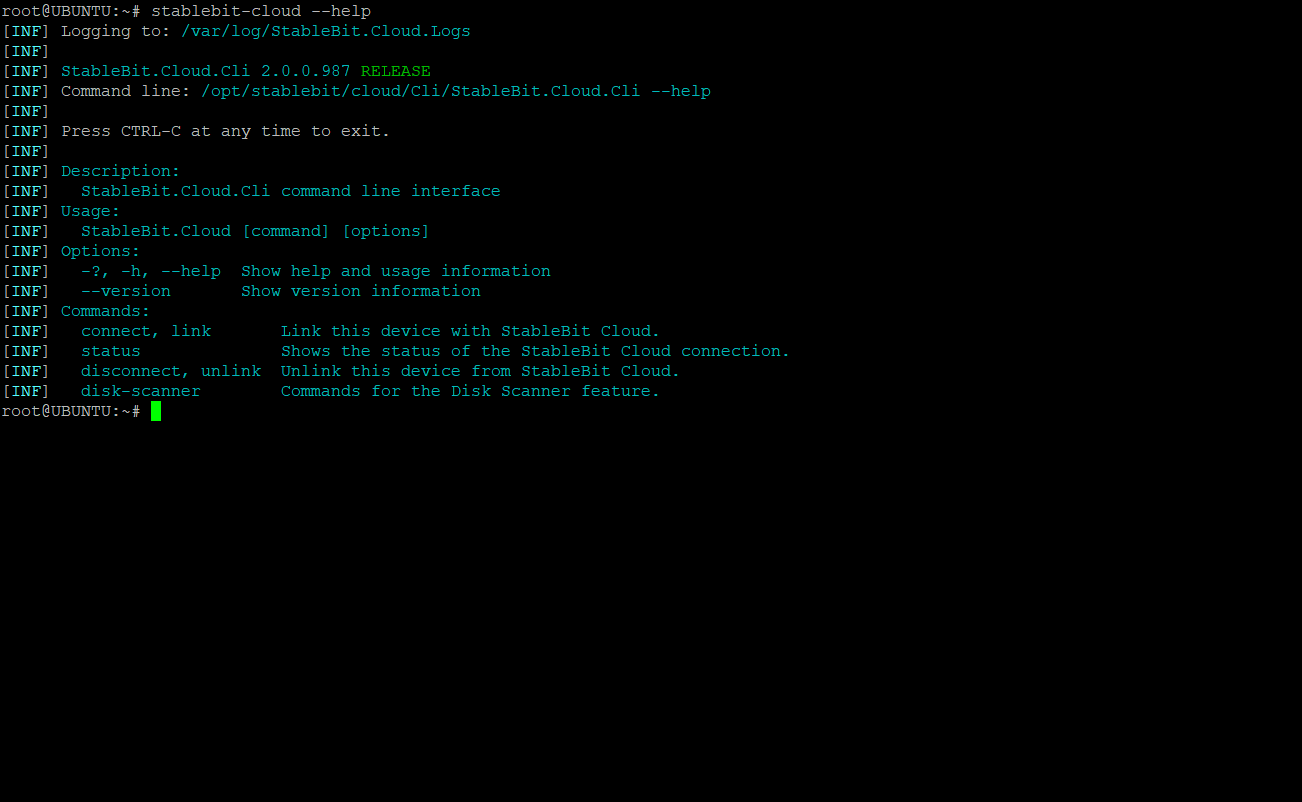
Simply run stablebit-cloud (or stablebit-cloud –help) to get help on usage.
To manage your StableBit Cloud installation, you can run stablebit-cloud-updater.
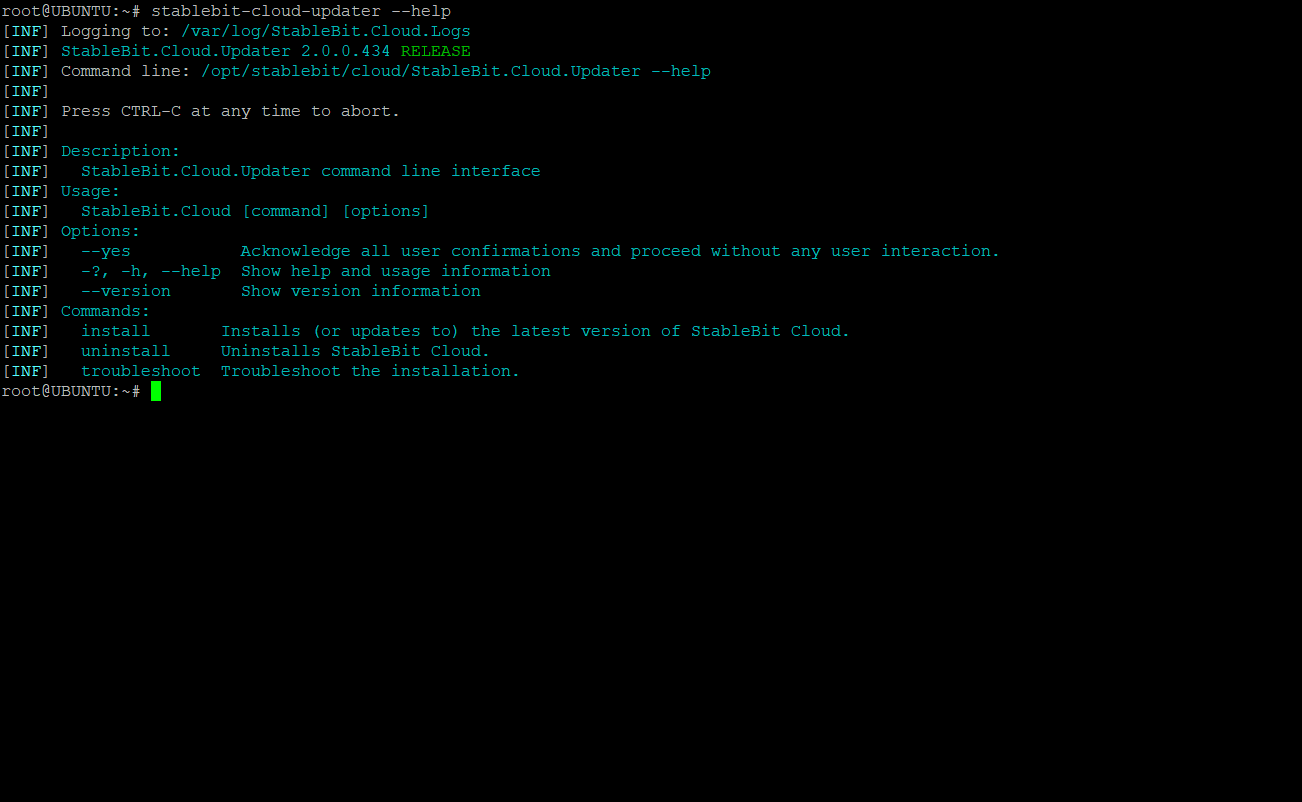
The updater allows you to manually update StableBit Cloud, to uninstall it, and to submit troubleshooting data to technical support when diagnosing potential issues. Once again, you can simply run stablebit-cloud-updater (or stablebit-cloud-updater –help) to get help on usage.
What is Installed
When you link your device to StableBit Cloud, our installer will place some software components on that device.
There are 4 main software components installed:
- Service – The service provides the core functionality required for StableBit Cloud features to run on your device. It also maintains a live connection with StableBit Cloud servers to facilitate real-time functionality.
- Updater – The updater’s primary purpose is to keep all StableBit Cloud software components up to date on your device. It can be used directly (via the stablebit-cloud-updater command), or it could be called automatically by the operating system or Service in order to coordinate automatic updating functionality.
- Updater repair – This component keeps the Updater up to date and can be used to recover a damaged installation. It is normally called by the operating system.
- Graphical app – On Windows and macOS, StableBit Cloud includes a graphical app that can be used to link the device to the cloud, to unlink it from the cloud, and to check on the current link status.
These components are installed with minimal dependencies on all operating systems.
Where they are installed:
- Linux – /opt/stablebit/cloud
- macOS – /Library/Application Support/StableBit.Cloud.Service and /Applications/StableBit Cloud.app
- Windows – C:\Program Files\StableBit\Cloud
Additionally, logs and application state are written to their respective locations on each operating system.
Automatic Updates
StableBit Cloud uses Updater to automatically keep itself up to date when the device is online. If linked to the cloud, it uses the Live Connection protocol to install any available updates in real-time, as soon as they become available. For your protection, all updates arrive cryptographically signed and are verified before they are installed.
Update Channels
StableBit Cloud delivers updates through two update channels, RELEASE and BETA. The BETA update channel lets you test upcoming features along with the latest bug fixes, before they are deployed more widely to the RELEASE channel. As a result, the BETA channel has a faster release cadence and deploys updates more frequently.
The channel that is selected initially depends on where you link your device from:
- RELEASE – https://stablebit.cloud (or https://stablebit.cloud/Download)
- BETA – https://beta.stablebit.cloud (or https://beta.stablebit.cloud/Download)
Channel-specific change logs are available at: https://covecube.download/Changes/?tag=StableBitCloud
Switching Channels
To switch to a different update channel, simply run the appropriate (BETA or RELEASE) installer. It will uninstall the current version, install the latest version from your chosen channel, and (optionally) re-link your device.
To check which update channel you’re currently on, you can run stablebit-cloud-updater update-channel.
Uninstalling
On Windows and macOS, you can uninstall StableBit Cloud from your device just like any other app.
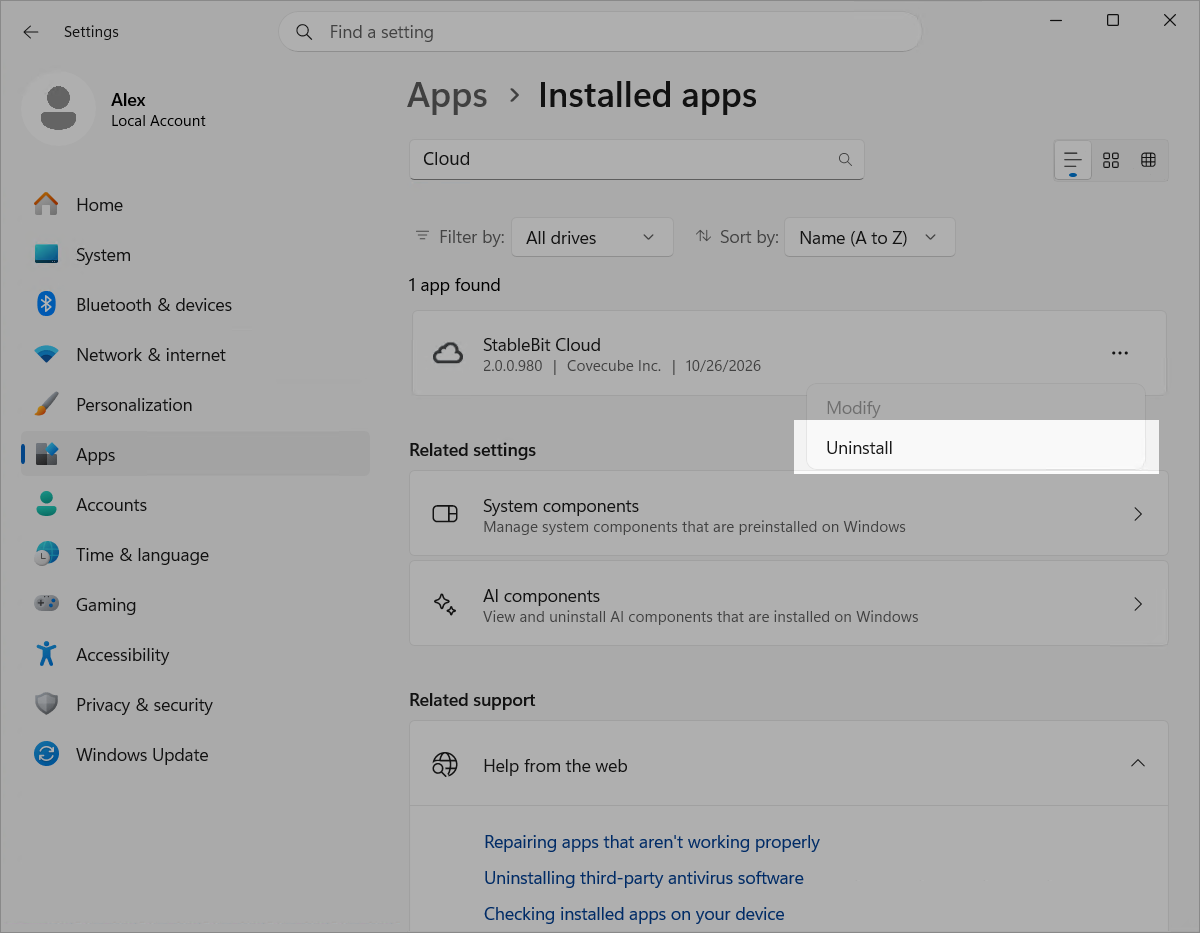
On Windows, open Settings -> Apps -> Installed apps, and select Uninstall.
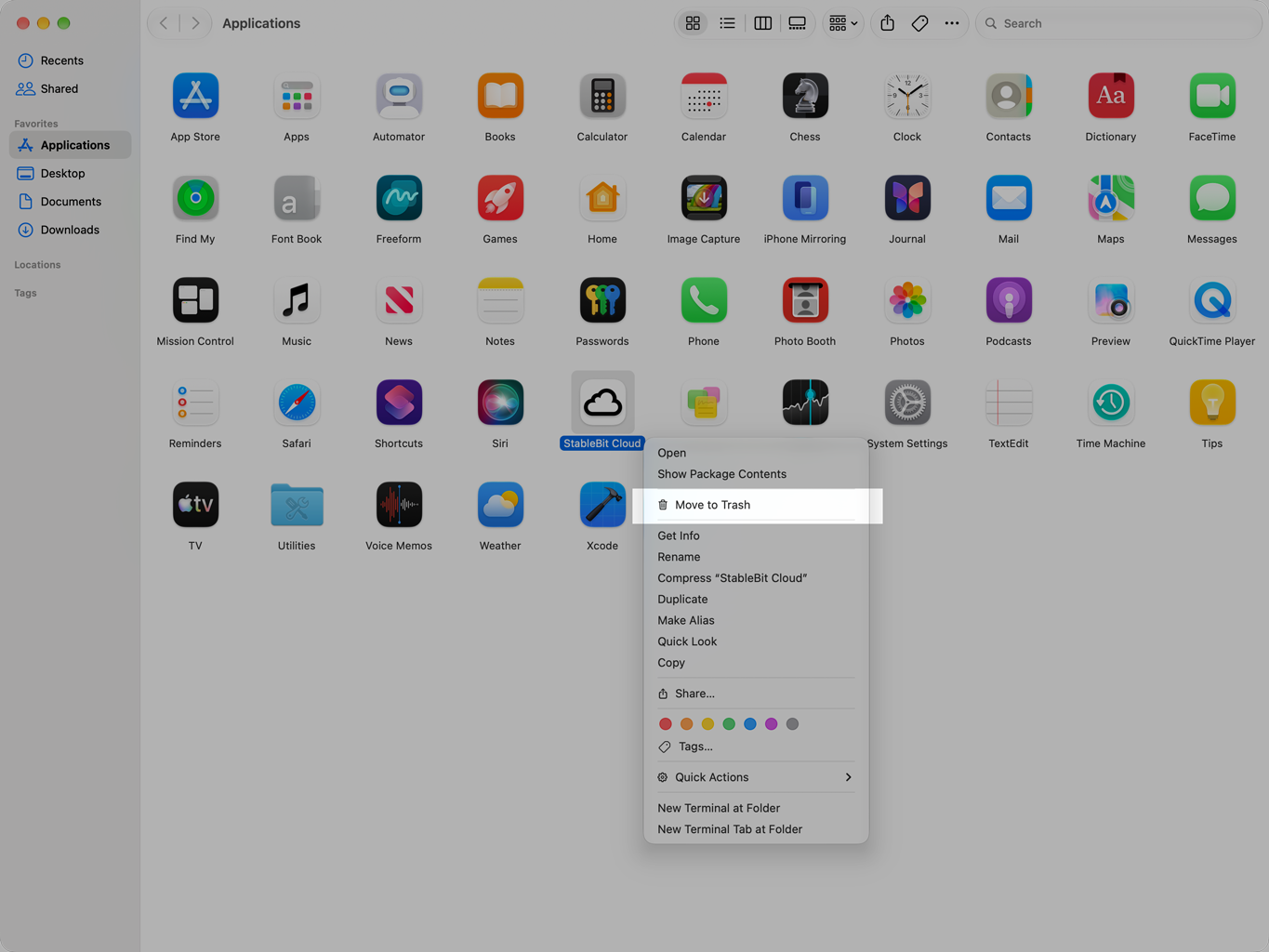
On macOS, simply drag the StableBit Cloud app to the Trash (or choose Move to Trash from the context menu).
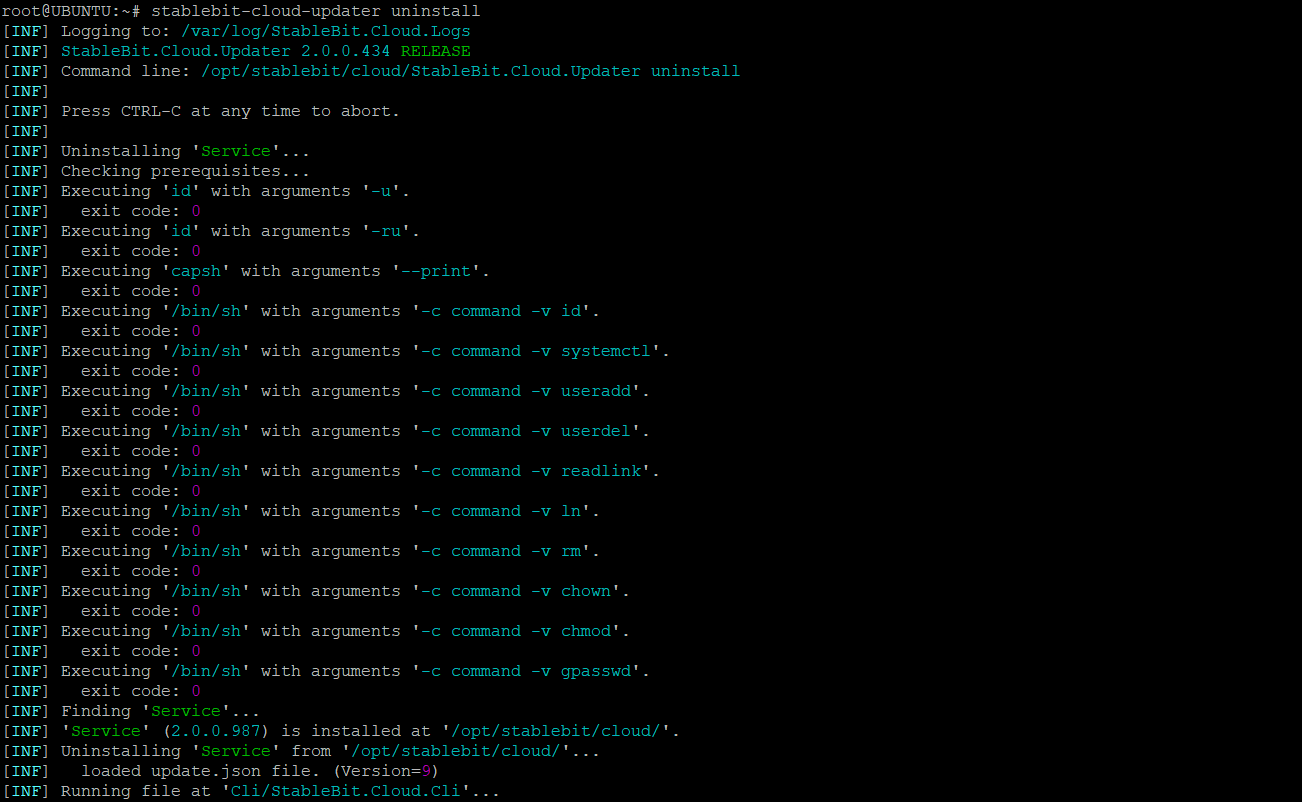
On Linux, you can run stablebit-cloud-updater uninstall. This is supported on macOS and Windows as well.
Your device will be automatically unlinked from the cloud at uninstallation time, if an internet connection is available. You can also unlink and delete your device from the cloud at any time by visiting the Devices area, selecting your device, and choosing DELETE.
Features
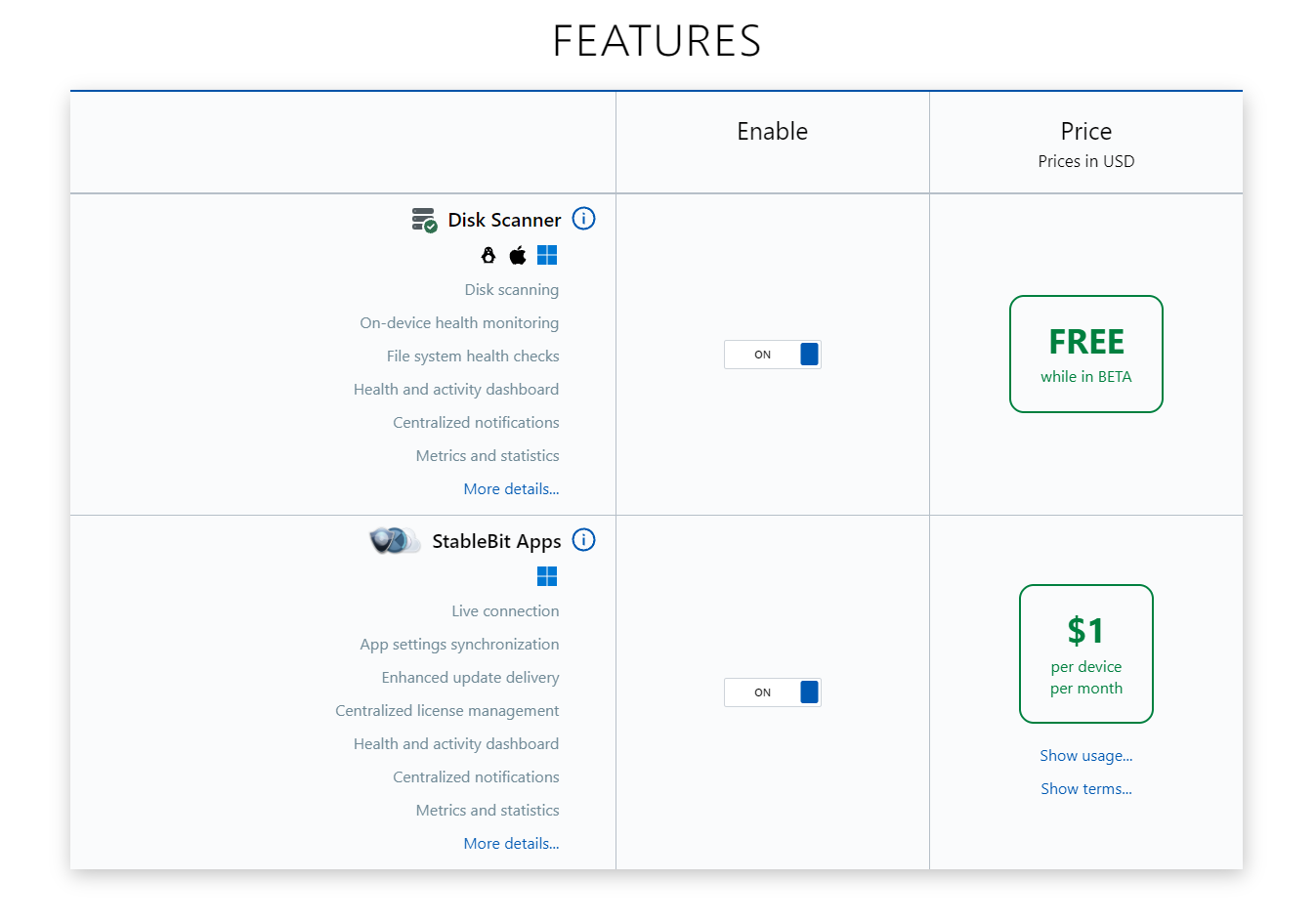
Linking your device to StableBit Cloud enables cloud-powered functionality on that device. Each unit of functionality is called a Feature. Each feature is supported on one or more operating systems.
Features can be enabled or disabled at any time from the Subscription area. Once a feature is enabled, it starts to function immediately on all of your supported devices.
Once your device is linked, no additional apps are needed to use a feature (except for the StableBit Apps feature, which requires the use of StableBit Apps).
Some features may be free to use (e.g. BETA or EXPERIMENTAL features), while others have usage charges associated with them. Once you enable a paid feature, you’ll be charged for its usage according to its pricing structure. See the Subscription area for details on pricing.
30-day Free Trial
All new accounts are granted an all-inclusive 30-day free trial. While this trial is active, all StableBit Cloud features can be used for free. If you subscribe while your trial is active, you will not be charged for usage until your trial period ends.
Disk Scanner
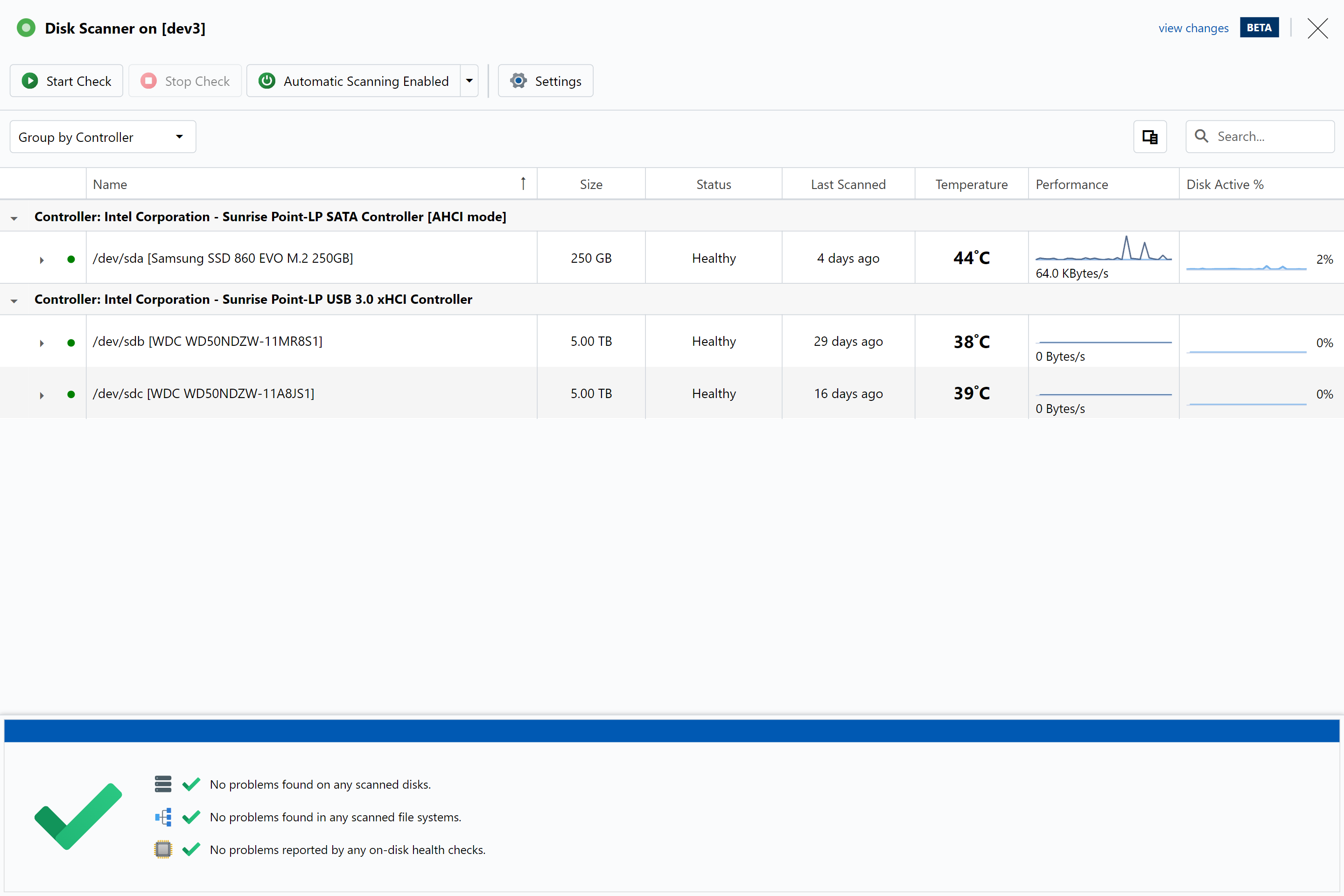
StableBit Cloud’s first new feature is called Disk Scanner. It’s supported on Linux, macOS, and Windows. It is currently in BETA and is free to use for now.
Disk Scanner is a modernized, multiplatform version of our StableBit Scanner, adapted to the cloud.
Its primary job is to proactively monitor and verify the health of your storage devices, and to let you know at the first sign of trouble.
It supports:
- Disk scanning (of course).
- On-device health monitoring.
- File system health checking.
- And other features, such as scheduling, heat management, power management, and throttling.
One notable feature that is absent from Disk Scanner (which was present in StableBit Scanner) is file recovery. Disk Scanner does not support scanning for damaged files or attempting to recover them.
Because Disk Scanner is currently in BETA, the information presented here is subject to change in the future.
Disk Scanning
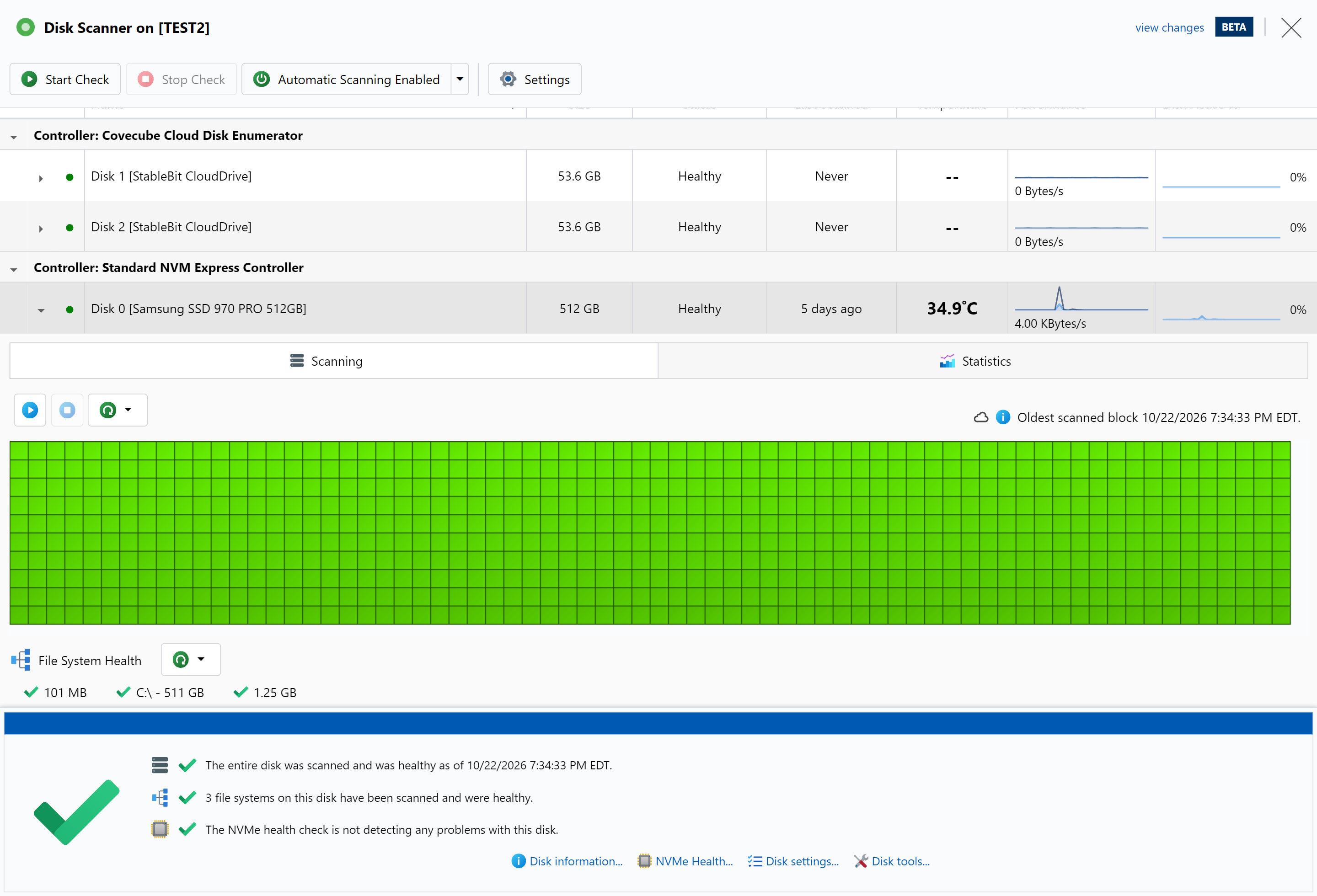
Disk Scanner will periodically scan the entire readable range of your storage devices to make sure that every single bit remains readable. If an issue is found, you will be notified immediately. You can set up one or more notification methods in the Notifications area.
On-device Health Monitoring
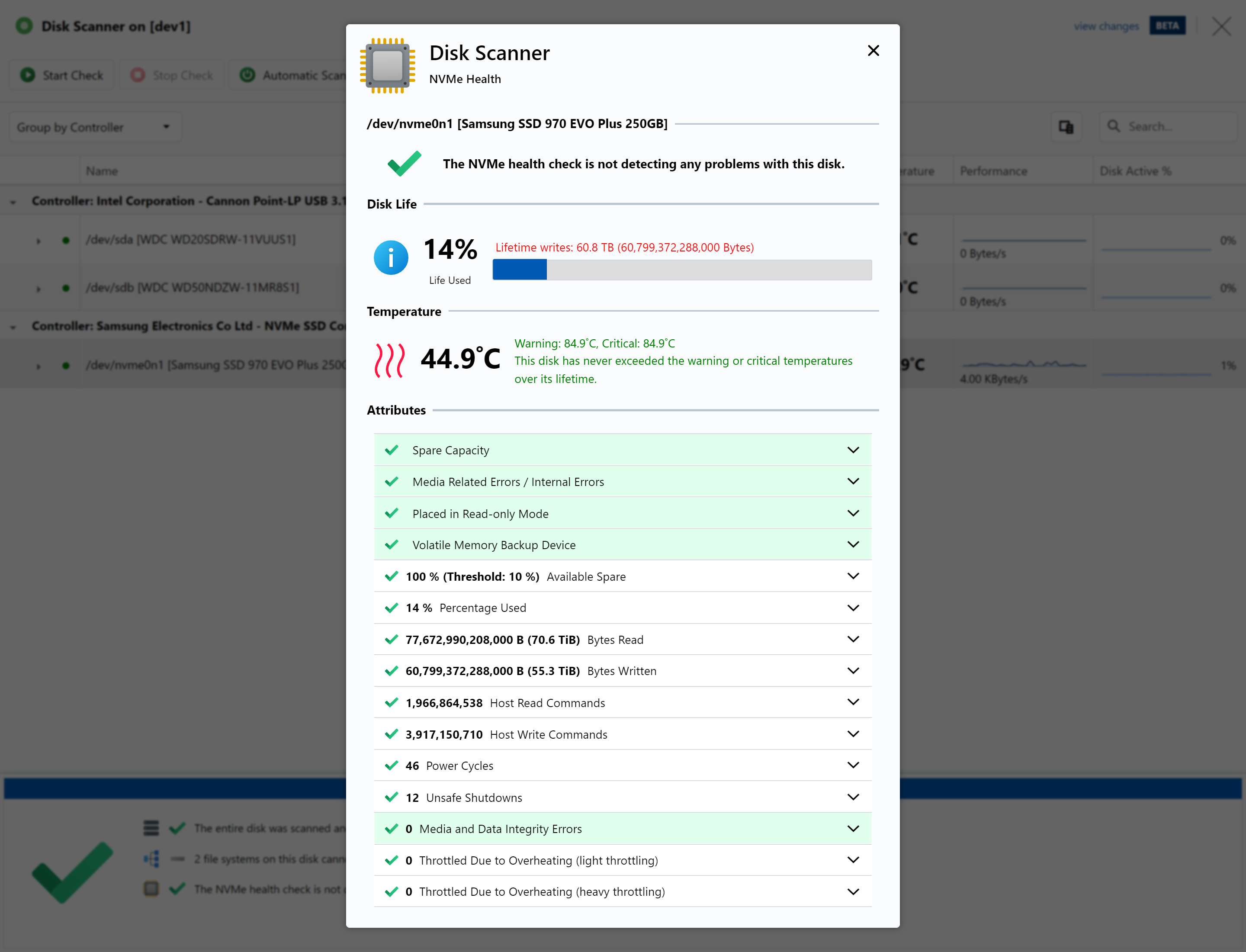
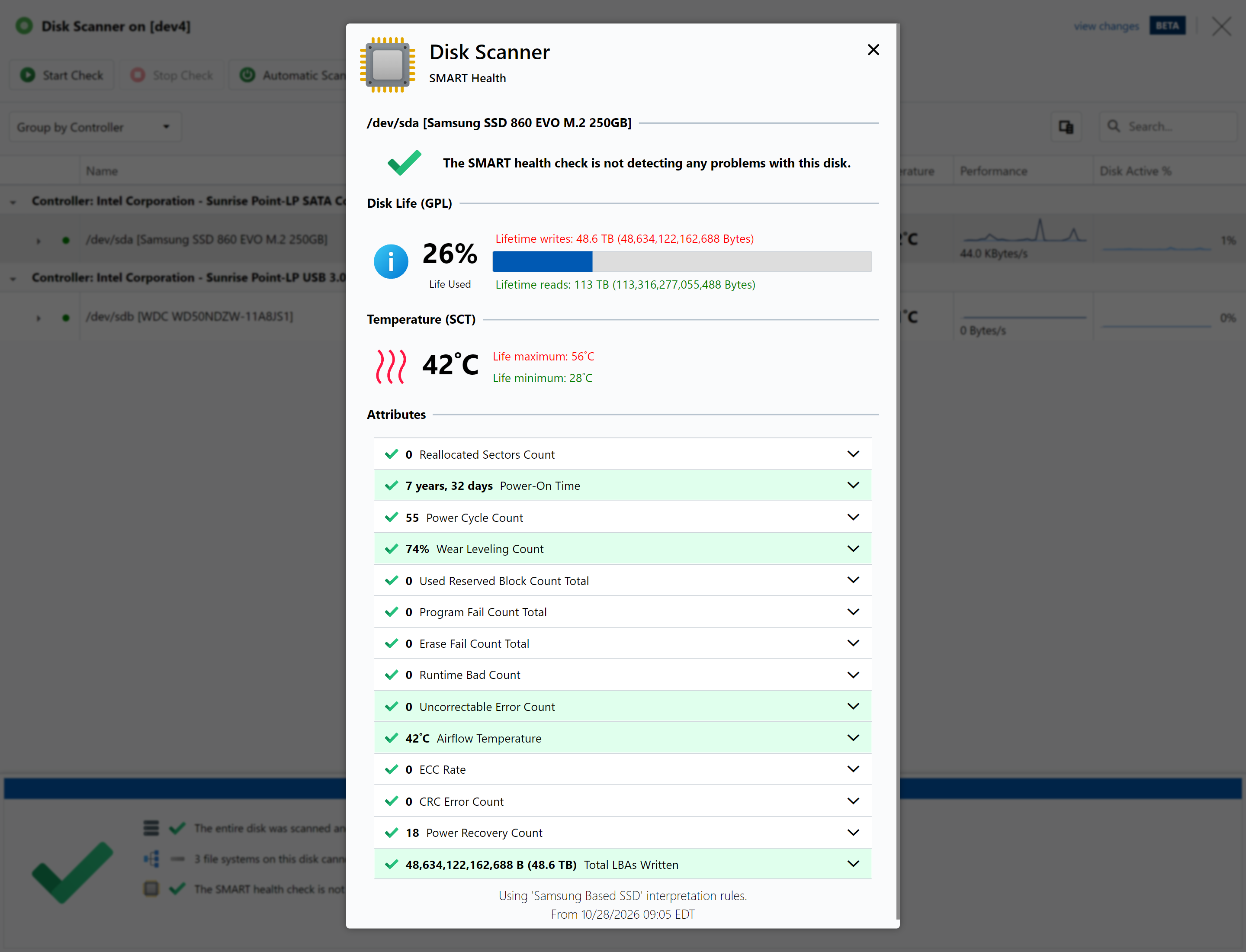
Disk Scanner monitors on-device health parameters to ensure that the storage device is not showing any signs of trouble. It supports monitoring both NVMe and SMART*.
* On macOS, SMART is not supported.
File System Health Checking
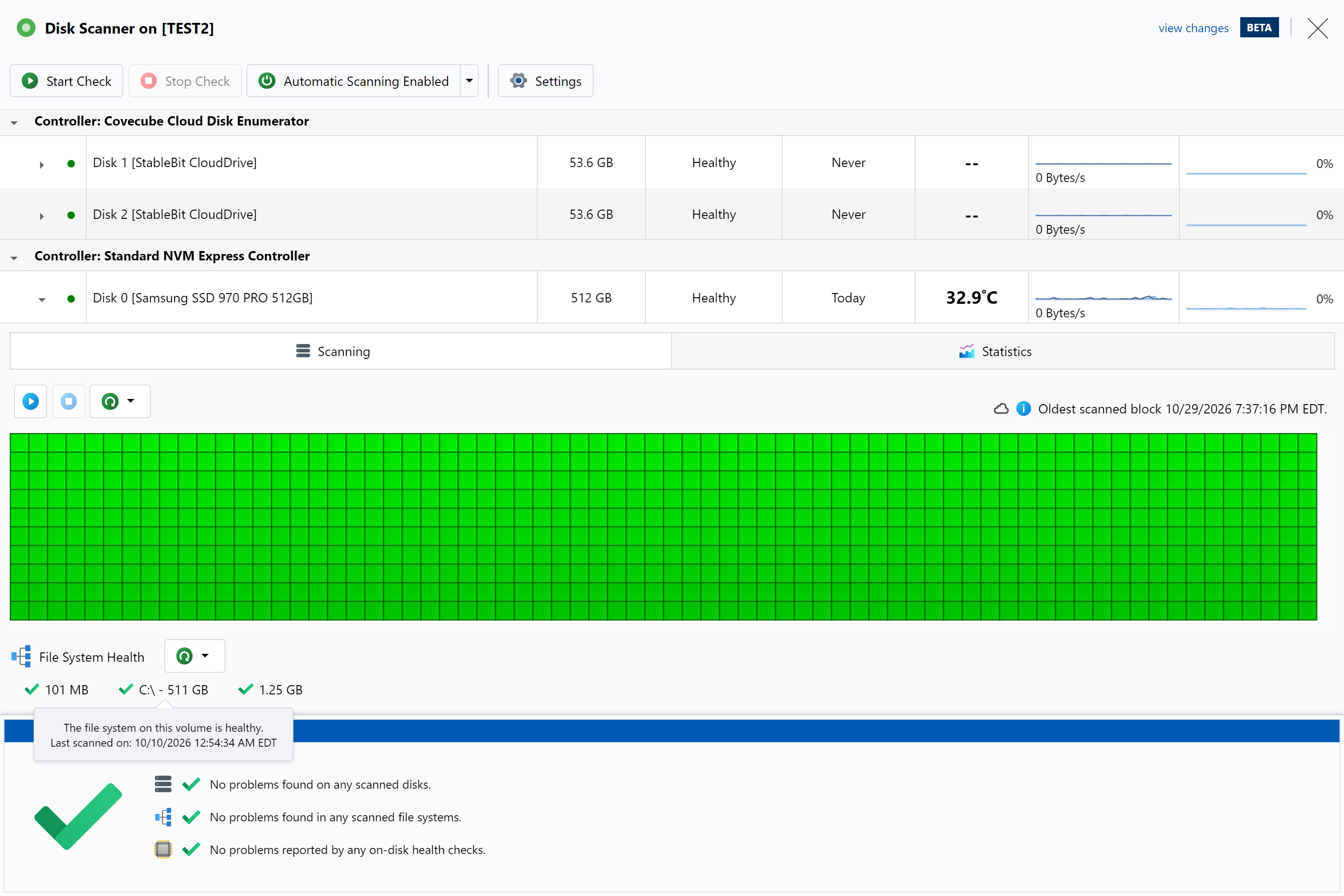
Disk Scanner will also monitor the health of your file systems by periodically checking them for problems, when possible*. It will let you know if any of them show signs of corruption.
Currently, Disk Scanner supports checking:
- Windows – NTFS, FAT, FAT32, exFAT
- Linux** – ext2, ext3, ext4, XFS, VFAT, exFAT
* On Linux, supported file systems must be unmounted in order to be scanned. On macOS, file system scanning is not supported due to platform limitations.
** An appropriate fsck tool must be installed in the operating system.
Live Services
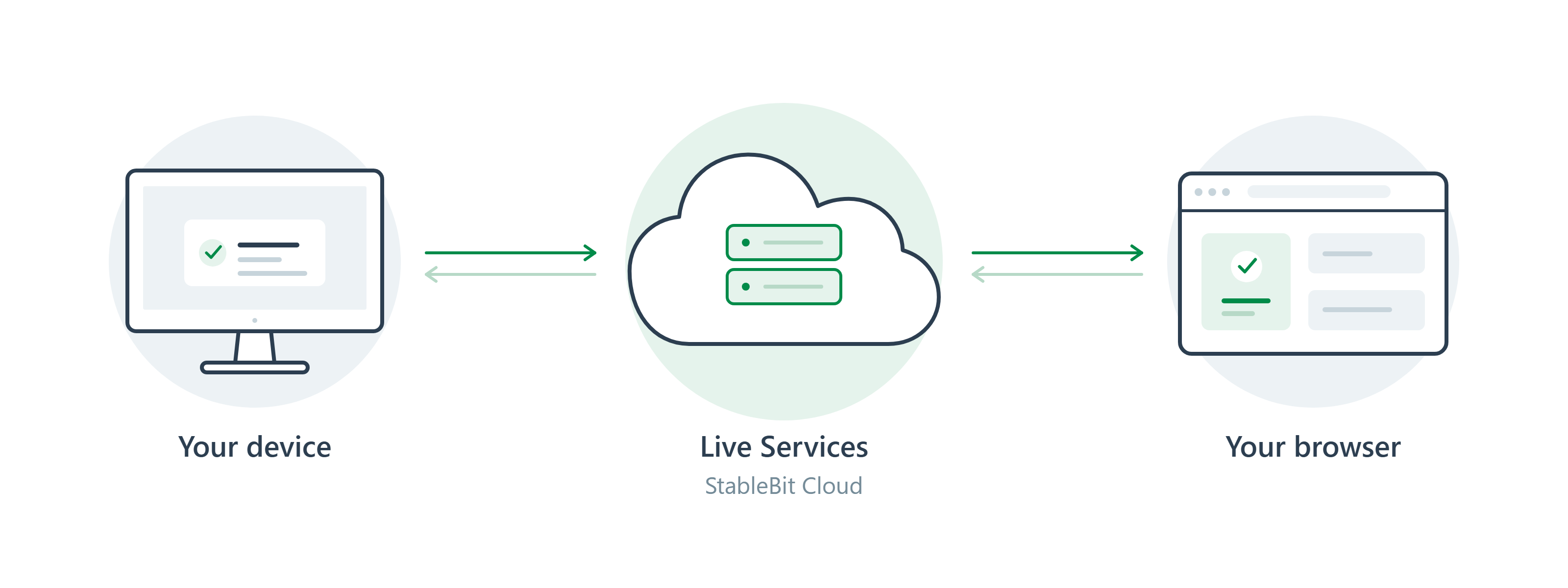
Powering StableBit Cloud is our Live Services architecture. Live Services link your device, our cloud services, and the website that you interact with into one cohesive real-time network. Live Services is a novel architecture engineered specifically for StableBit Cloud, not based on any existing technology.
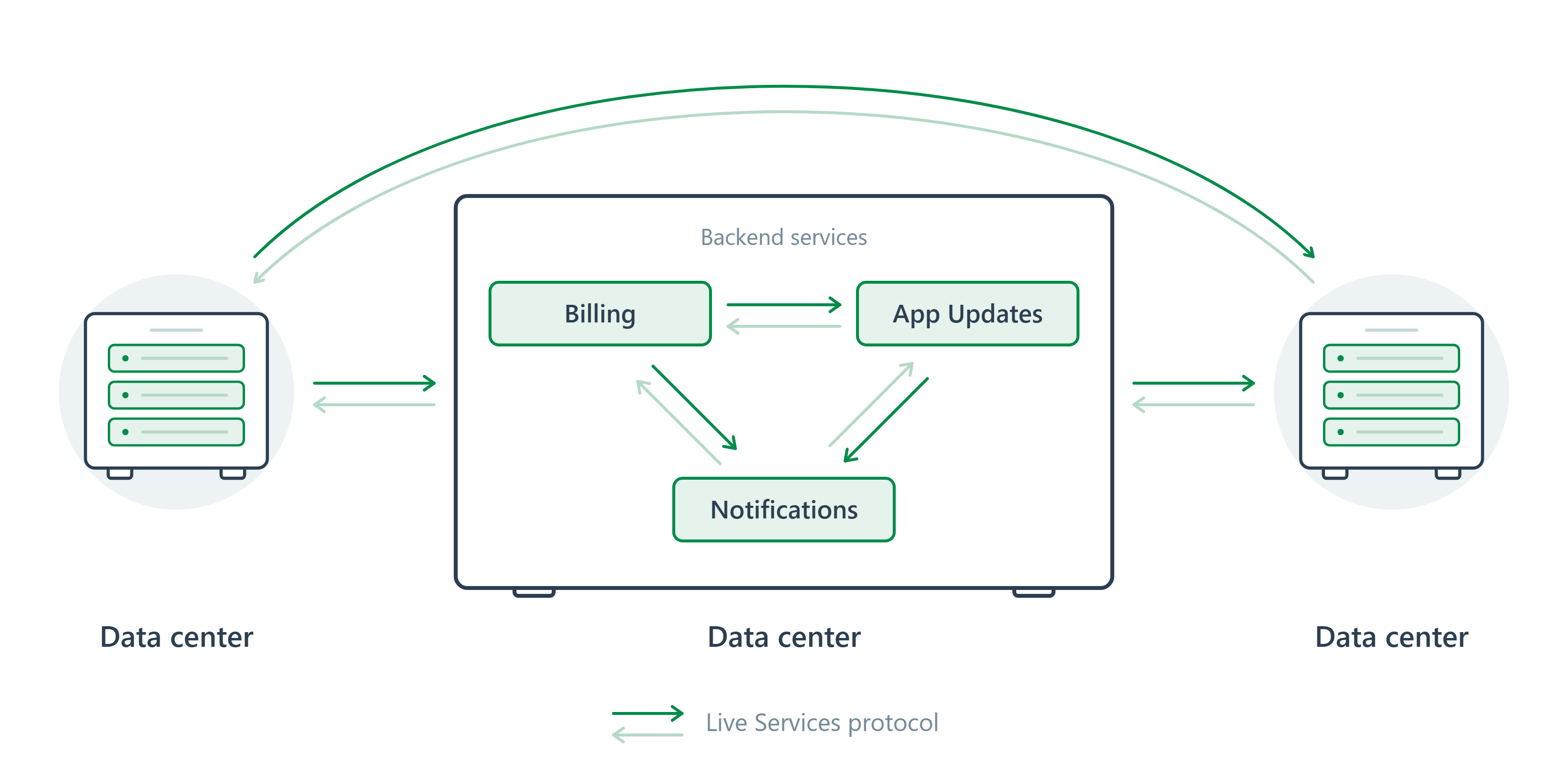
At the heart of Live Services is a new networking protocol, designed specifically to facilitate real-time interactive communication over lossy networks. It’s designed to be high speed, scalable, and fault tolerant. We use this protocol to connect numerous backend services across multiple data centers into a single real-time system.
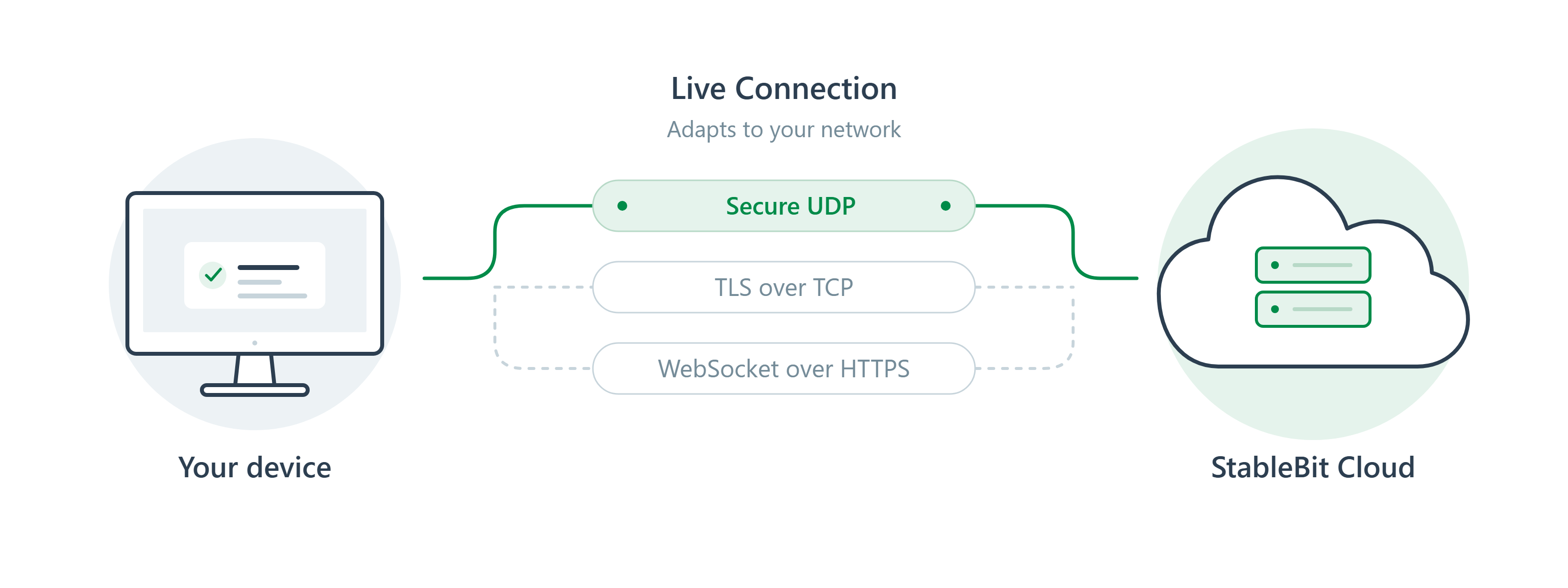
When linked to the cloud, your device communicates with StableBit Cloud using our Live Connection protocol. This is a specialized version of our Live Services protocol, adapted for use on end-user devices.
It can communicate with StableBit Cloud using various methods:
- Secure UDP – This method is fast and has very low overhead.
- TLS over TCP (port 443) – In restrictive network environments, this method uses the same port as HTTPS and is similar to regular website access.
- WebSocket over HTTPS – In proxied network environments, this method uses WebSockets (as a wrapper) for maximum compatibility.
The method selected for use depends on how restrictive your network is.
Website
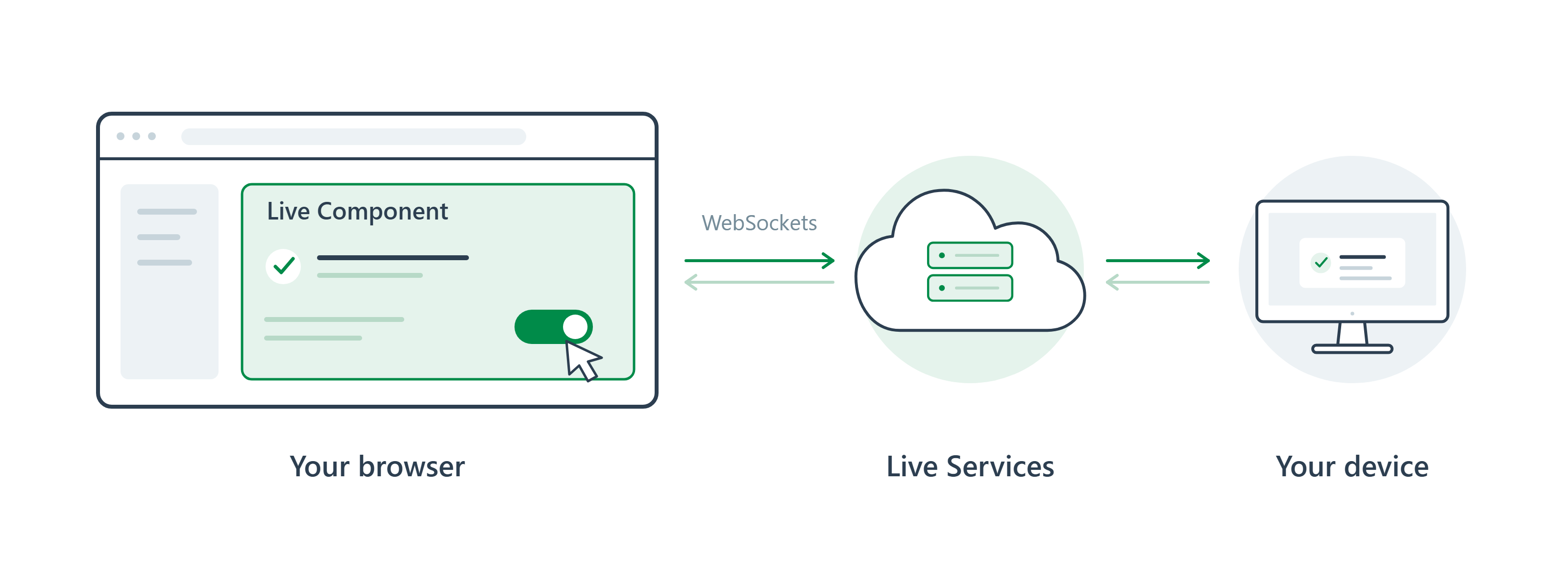
To tie this all together, when you visit StableBit Cloud on the web, you are interacting with our novel component-based JavaScript framework, designed specifically for StableBit Cloud. Among other things, this framework facilitates a real-time link from your web browser directly to our Live Services infrastructure via WebSockets.
The end result is, you can be interacting with a Live Component user interface on the web, which is directly linked with your device’s state.
Troubleshooter
When you link a device to the cloud, built-in troubleshooting functionality is installed onto that device to help technical support diagnose any potential issues that you may have with StableBit Cloud. Using this functionality, you can manually initiate a diagnostic data package submission to technical support for analysis.
StableBit Cloud never sends troubleshooting data in the background without your explicit consent.
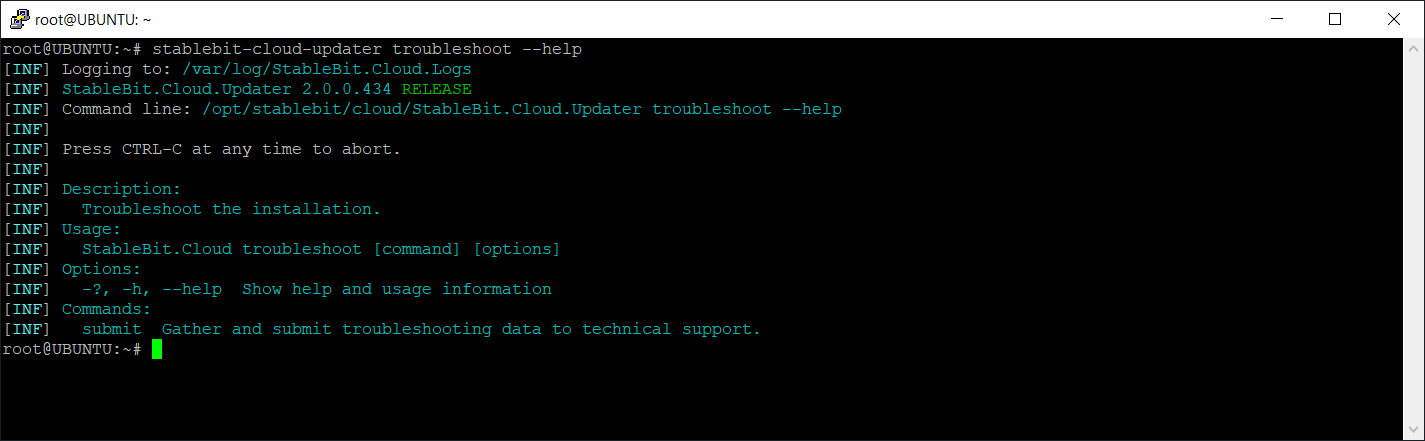
Troubleshooting functionality is included as part of Updater and can be used by running the stablebit-cloud-updater troubleshoot command.
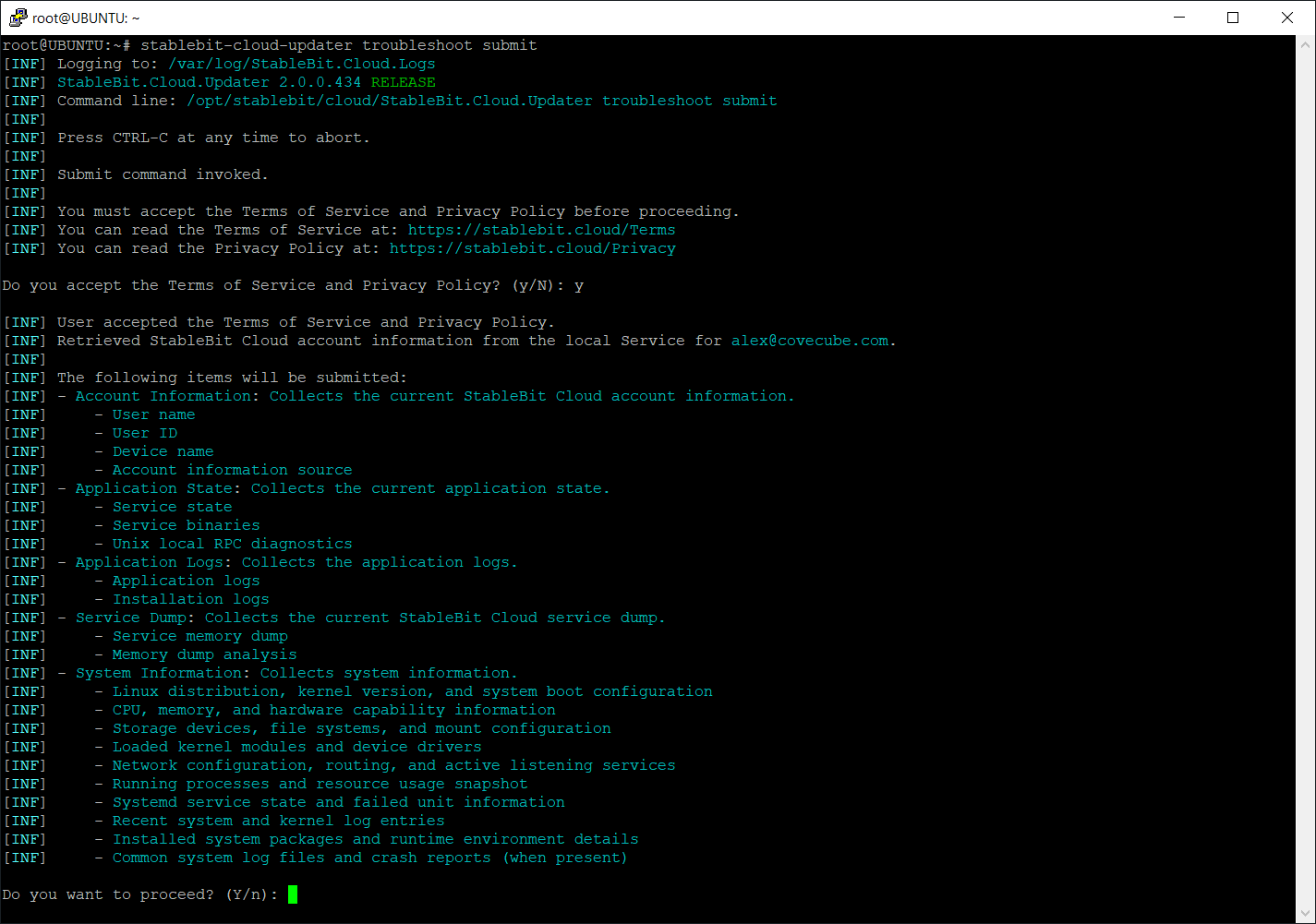
To submit a diagnostic data package to technical support, you can run stablebit-cloud-updater troubleshoot submit. The set of data collected changes depending on which operating system is in use.
If stablebit-cloud-updater is not available or malfunctioning, a standalone troubleshooting tool is also available for download. The functionality of the standalone tool is identical to the built-in tool.
Download the standalone troubleshooter: https://covecube.download
Authentication
Because each troubleshooting data submission is linked to your StableBit Cloud account, you do need to be authenticated before a submission can be made. If the device is already linked to the cloud, then authentication is obtained automatically.
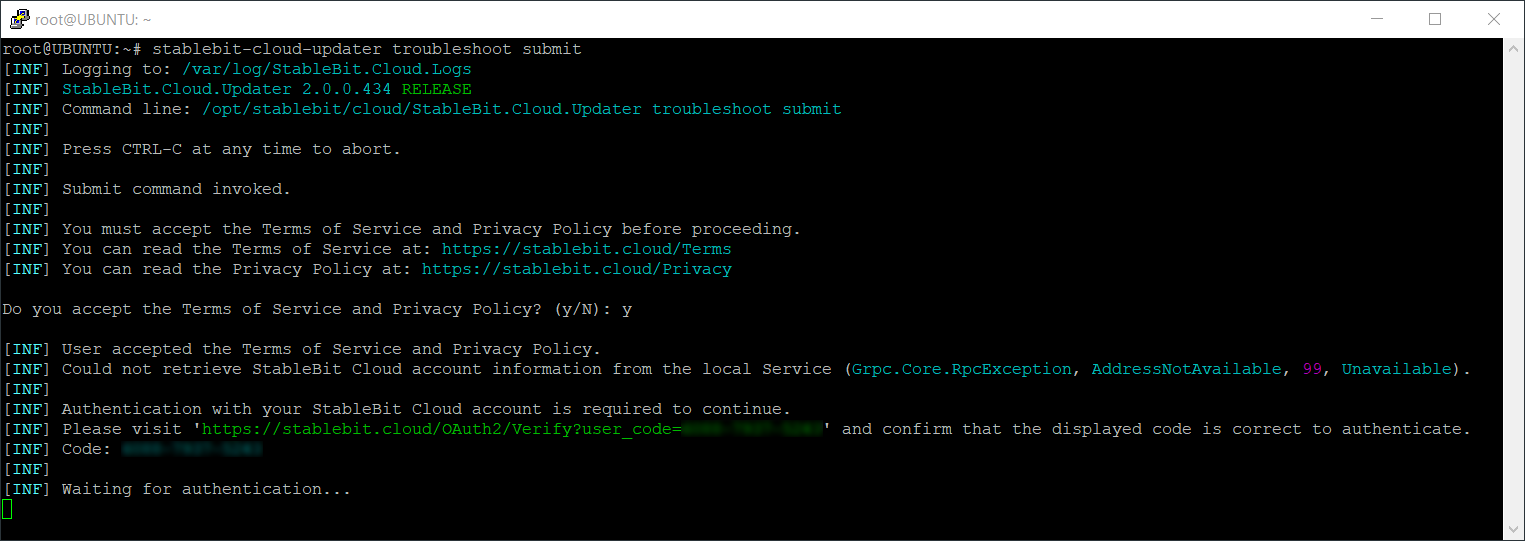
If the Service is malfunctioning, or if the device is not linked to the cloud, you will have to authenticate the submission by visiting a link to approve it. This approval step can be performed on the same device or on another device.
Status Monitoring
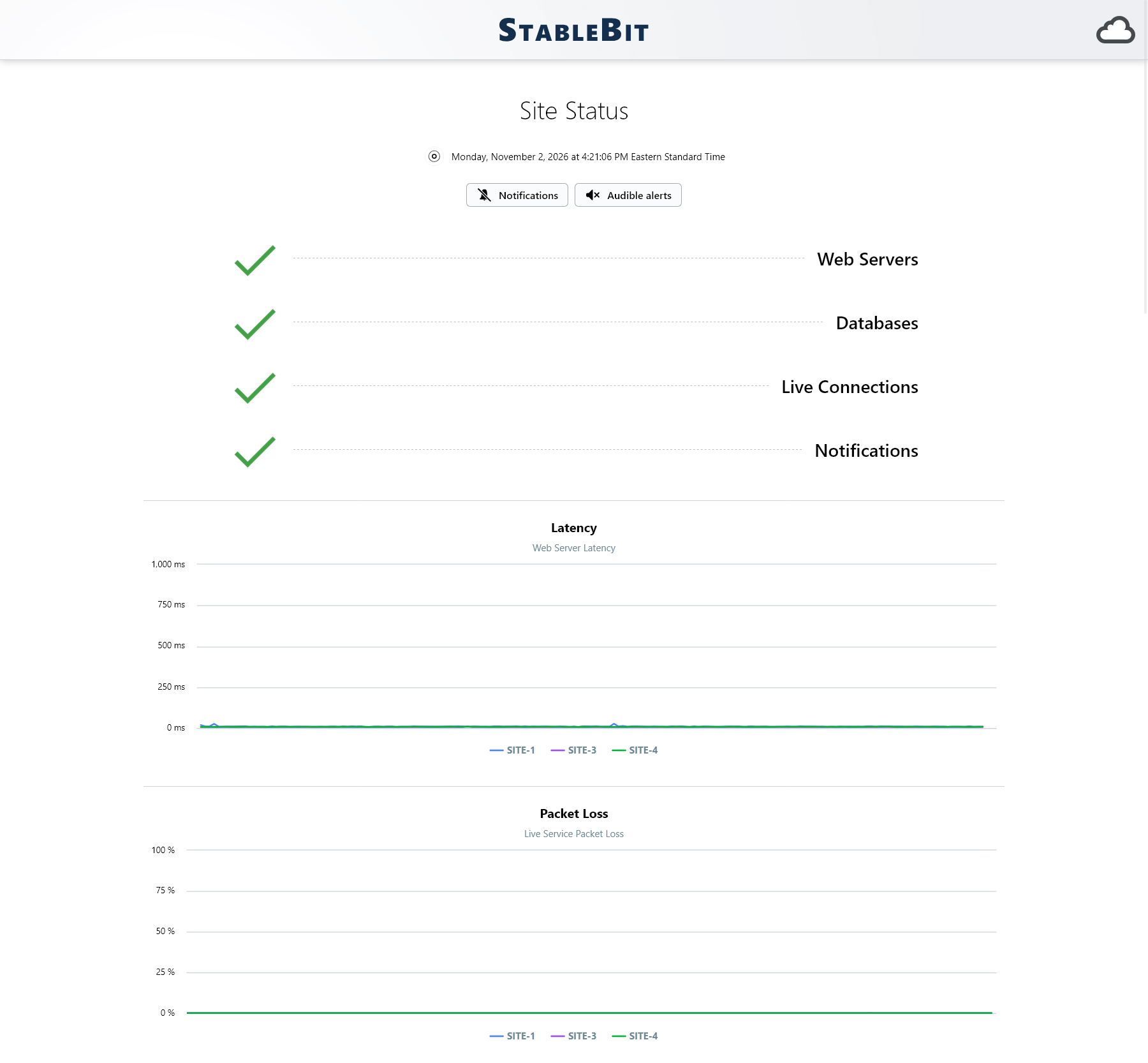
StableBit Cloud features its own status monitoring infrastructure which monitors the health of its various systems.
Visit: https://status.stablebit.cloud
The current overall health of StableBit Cloud is summarized at the top, along with recent latency and Live Service packet loss statistics. Latency is measured from a separate data center in the same region to our web servers. Packet loss reflects the connection quality between our data centers, as measured by our Live Services protocol in near real time.
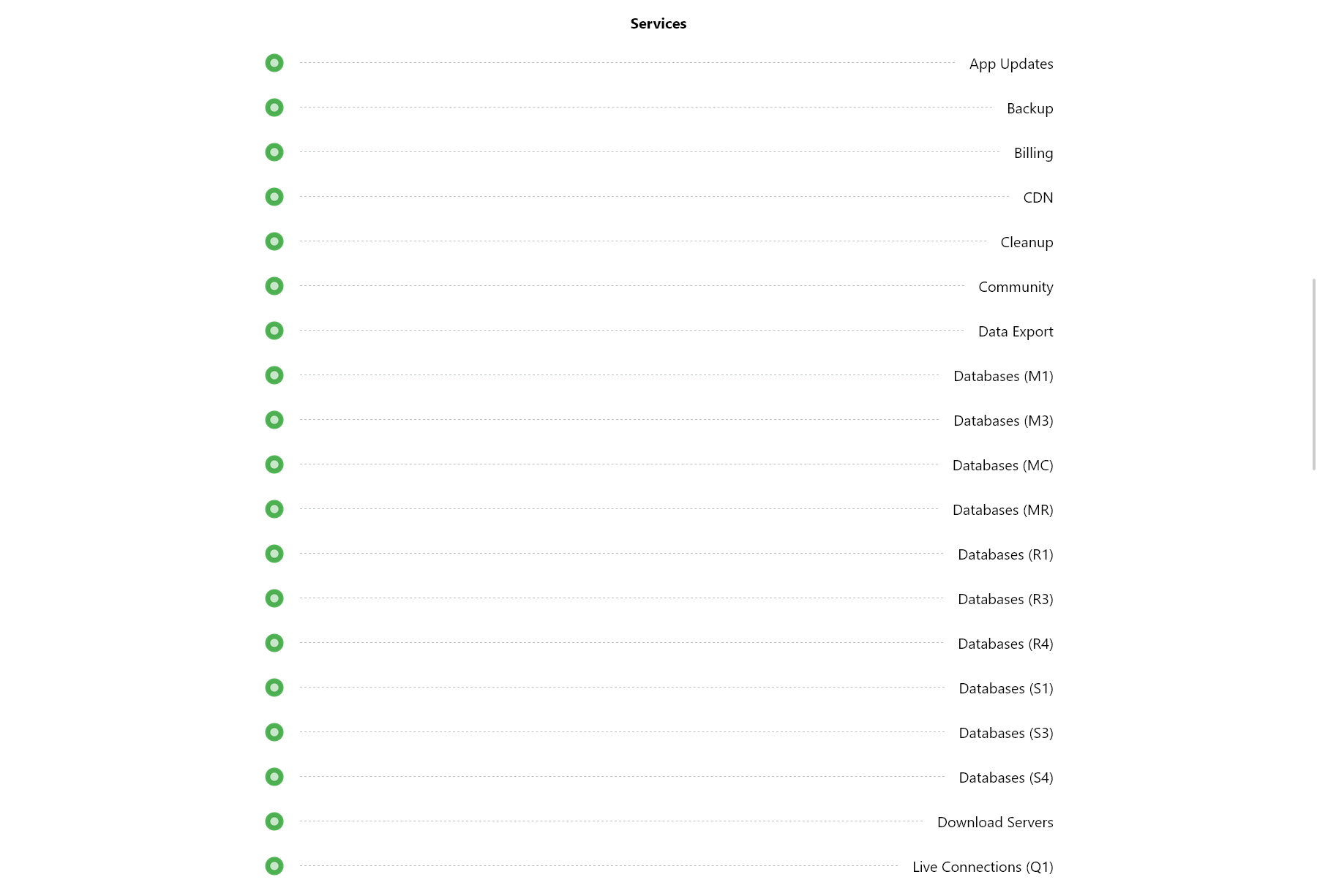
Further down the page, each service’s current status is shown as well.
Resilience
The status monitoring infrastructure is a standalone system that is designed to remain functional despite any StableBit Cloud service failures. It is physically run at a separate data center, along with its own separate set of services powering it. It is a system specifically designed for continuous StableBit Cloud status monitoring.
AI Use
This StableBit Cloud update was a multi-year development effort, and the vast majority of it was engineered without the use of AI assistance. Therefore, the overall role of AI in its development was minimal.
What’s Next
The next major milestone for StableBit Cloud will be the Disk Scanner feature coming out of BETA. Do expect continuous updates between now and then as we move toward that goal.
To stay up to date on the latest changes, you can view our change logs at: https://covecube.download/Changes